Use without account when you only need offline
Playback, local library organization, metrics, and most core features can be used without an account.
Owned Library Workflow
We aim to be the best offline music player experience: start with account login or continue without account, keep playback and core library workflows offline, and use online connection only where it is actually needed.
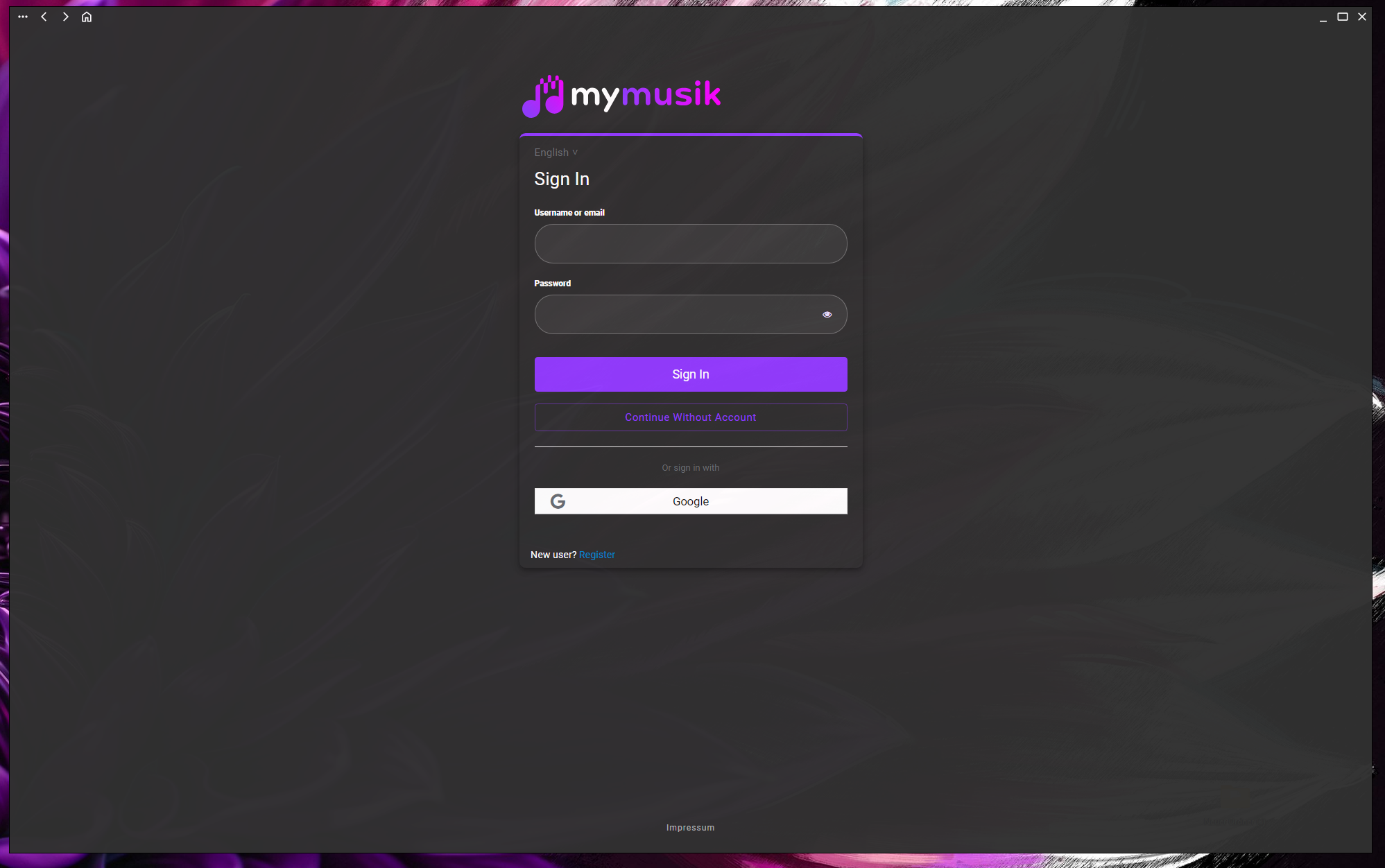
Playback, local library organization, metrics, and most core features can be used without an account.
Internet is mainly needed for login status checks, AI content and question solving, plus music synchronization and download tasks.
We keep online usage as small as practical for a modern multi-device workflow, while making sure main features do not depend on constant connection.
On the login screen you can sign in, or use the login-without-account option to start an offline-only workflow immediately.
Playing music does not require internet. Library organization, metrics, and local workflows are designed to remain usable offline.
Internet is mainly used for account status checks, AI content and question solving, plus synchronization and download tasks.
When using sync, occasional connectivity is needed to confirm status and keep all devices aligned.
Use drag and drop to add tracks quickly on desktop, or choose an audio folder with the built-in folder action.
The audio-folder action is also available from browser and desktop menu flows, so existing folder structures can be imported fast.
Drop files into your auto-import folder and MyMusik will import and categorize tracks into your library automatically.
Import from Android via USB or the Android share sheet. You can also add files into auto-import for automatic categorization.
Import remote audio files and ZIP archives to move existing collections into one managed library.
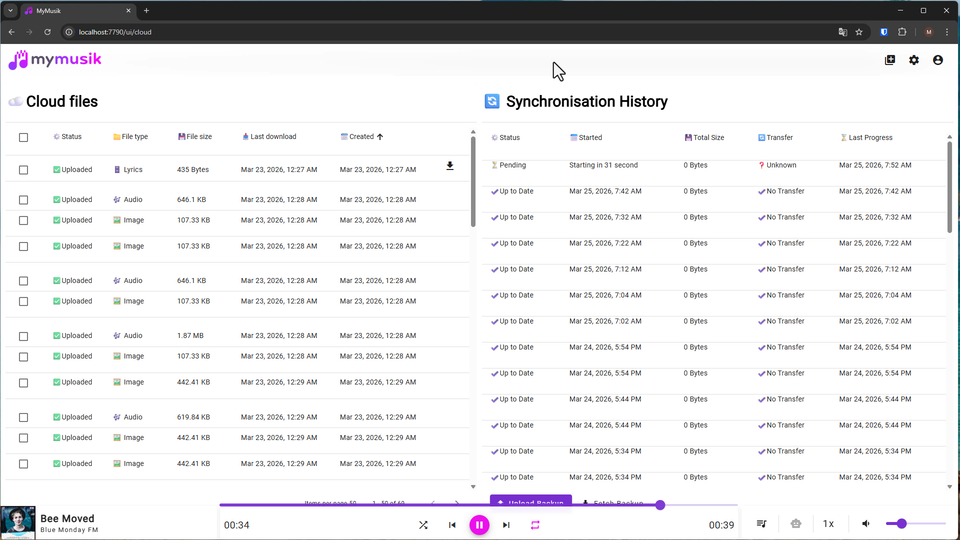
Sync mode starts after setting a cloud password. It is stored only on your device.
Library metadata and files are uploaded so other connected devices can see the same collection.
When a song is played on another device, MyMusik downloads that track. Album-level actions handle full album upload or download.
Important: if the cloud password is lost, encrypted cloud data cannot be recovered. After longer offline periods, sync also needs a connection to re-check consistency.
MyMusik supports MP3, WAV, FLAC, and more. You can combine formats in one library and configure optional conversion settings and cut tools in settings when preparing files for different devices.
Current platform flow supports Windows, Linux, Android, and browser access. iOS is planned, but not yet available. Sync is designed so your owned library remains usable across your active devices.
Yes. Most users import their existing MP3 and WAV folders first, then improve metadata and playlists gradually. Start with the MP3 import workflow and then use the library organizer guide.
The fastest method is: import one folder, create one playlist, switch offline, and verify playback on each device you use. Follow the cross-device sync checklist and then validate with the download and setup page.
Open the encrypted music backup page and then the encrypted backup workflow guide to set up protection for long-term collections.
Download MyMusik, import your first folder, and verify offline playback with your own collection in minutes.