One collection across your devices
Sign in to the same account on each device to synchronize your library. Enter your cloud password when prompted to access encrypted content.
Your library across devices
Keep your library in sync on Windows, Android and Linux with optional cloud services. Sign in on each device, then choose which audio files to download for offline listening.
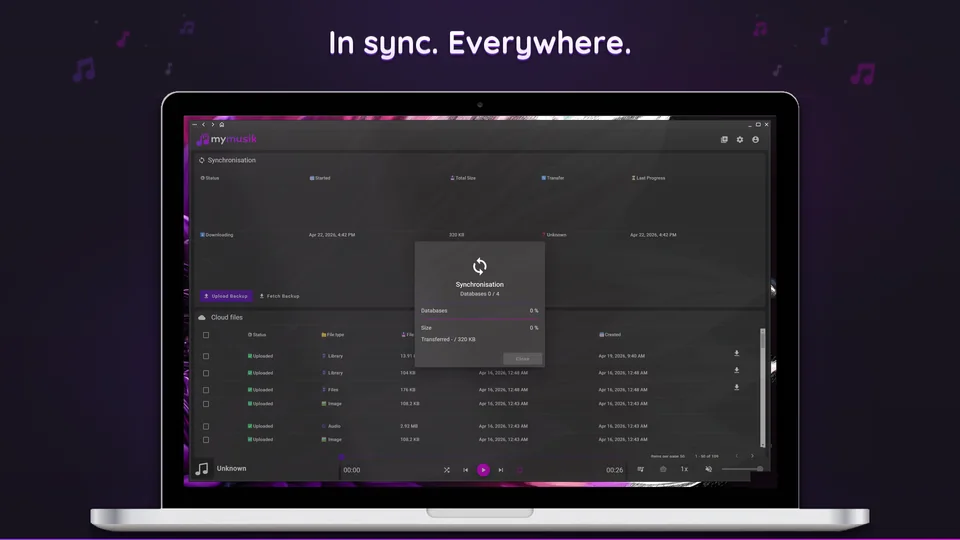
Sign in to the same account on each device to synchronize your library. Enter your cloud password when prompted to access encrypted content.
Download the songs and albums you want to take with you. A track can appear in your library before its audio is stored on this device.
Open Cloud to inspect synchronization status and history. A large library or slow connection can take time; check the current status before starting another operation.
Open Cloud to review uploaded audio, artwork and library data. Check that you have another copy before removing a cloud file.
Pin music you want to keep offline. Open Local files to review storage use and cleanup settings, and make sure your device has room for your selection.
Install MyMusik on your other device, sign in to the same account and enter your cloud password when prompted. Cloud transfers need internet and enough space in your account.
Open Cloud and check status and history. Allow the current work to finish, then confirm that the expected library entries are present.
Choose the songs or albums you need locally. Keep the connection available until their audio transfers finish.
Play a downloaded track, then test the selection without internet. Check local storage and any access requirements for encrypted downloads before leaving.
This screenshot shows the English app interface.

Library synchronization and audio transfers are separate. Check local availability and download the music you need rather than assuming every visible track is stored on the device.
Cloud transfers need network access on the participating device and a reachable service. Playback can work offline once the required audio and access information are available locally.
Check Cloud status and history, your connection and available account storage. If progress is moving, allow it to finish. Review any error before retrying or choosing a force action.
Use force actions only after checking their confirmation and the current local and cloud state. They can replace data. Export a separate backup of important local app data first.
Cloud storage has account limits and transfer conditions. Verify what has uploaded and keep an independent backup of important source audio and app data.
Visit the download page, install MyMusik and try one music folder first.
Check the current plans for cloud storage and AI allowances before choosing a plan.