Local listening without an account
Play supported MP3, FLAC and WAV audio stored on your device. Available storage and file access determine what you can keep ready.
Music ready for the day
Play your own supported MP3, FLAC and WAV files for free when the audio is stored and accessible on your device. Prepare a small selection and test it without internet before you travel. No account is needed for local playback; optional cloud downloads have separate access requirements.

Real app recordings with a demo music library. Explore the controls, then follow the guide to try them with your own files.
Move an upcoming track to the top of the queue while the current song keeps playing.
See equalizer presets and frequency sliders, followed by sleep-timer choices: a duration, the end of the current track or the end of the queue.
Play supported MP3, FLAC and WAV audio stored on your device. Available storage and file access determine what you can keep ready.
Adjust each band from 31 Hz to 16 kHz and the preamp. Start with a built-in preset or save your own named settings and pin them to a quick slot. This shapes local playback; sound processing on a casting receiver can differ.
Create named queues for work, a journey or a long recording. Switch the active queue without replacing all your upcoming music.
Pause playback after a duration, the current track or the queue. Cancel the timer when you want to keep listening.
MyMusik stores album listening progress. Use the bookmark button in the album to resume the saved track and position when its audio is available.
Browse and play your collection through Android Auto in a compatible car. Download your music before the trip. Available controls vary by car display.
Continue without an account for your own local library. Open Import and choose supported files or a folder. If you use cloud audio instead, download the tracks you want before disconnecting.
Let imports and downloads finish. Check that the selected tracks have locally available audio and enough device storage. A song appearing in your library or playlist does not by itself mean its audio is ready offline.
Turn off the internet connection, play several selected tracks and reopen the app to test again. Do this before your trip. Encrypted cloud downloads also need a valid cached playback license; reconnect if it is missing or expired.
Step-by-step setup
Use a preset as a starting point, then adjust each band and save your own settings for headphones, speakers or spoken recordings.
Before you start: Play a locally available track in MyMusik and use a comfortable listening volume.
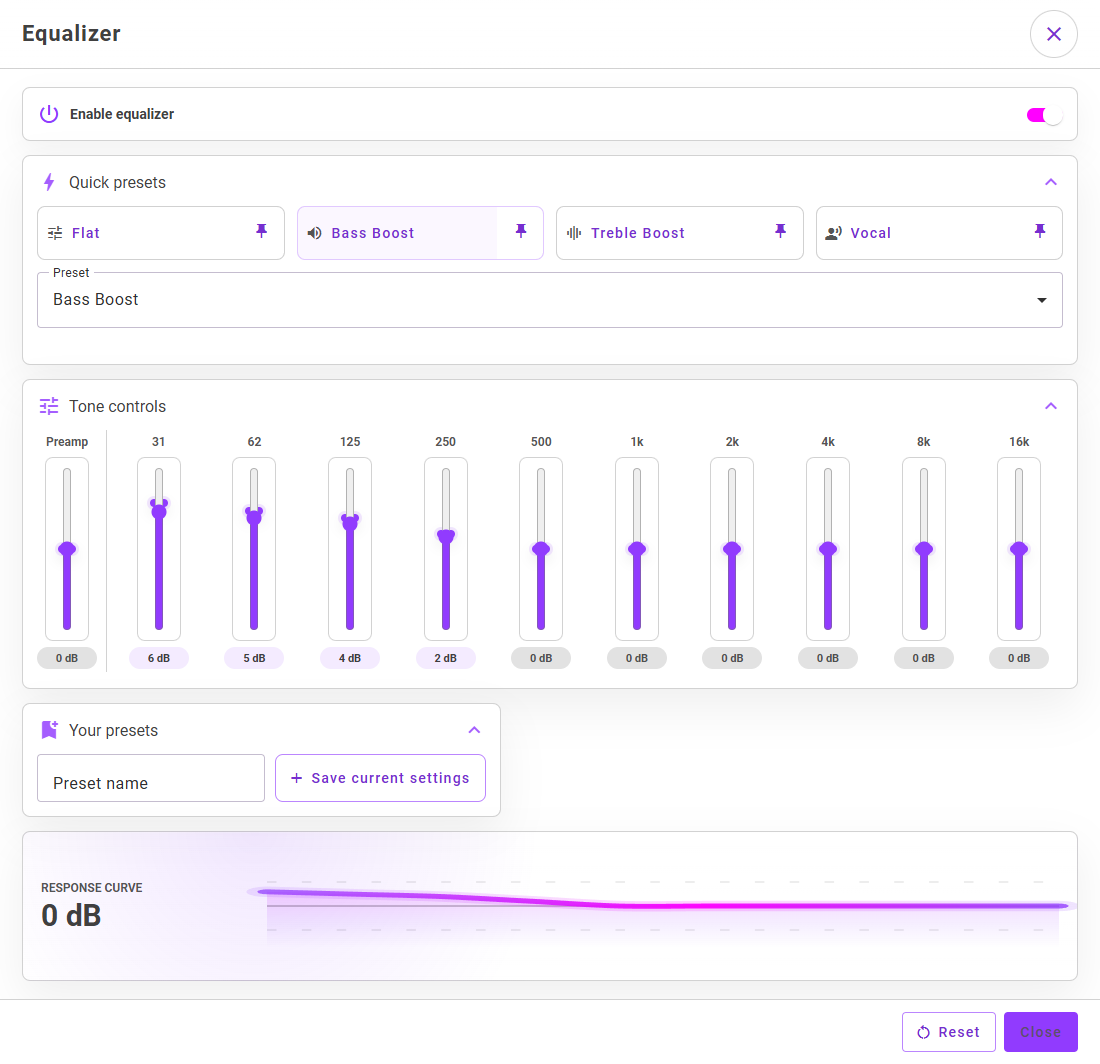
Open Equalizer from the player controls or playback settings. Turn on Enable equalizer at the top of the dialog.
Try Flat for a neutral starting point, Bass Boost for more low end, Treble Boost for more high end, or Vocal for voice-focused listening. More presets are available in the Preset list.
Use the controls from 31 Hz to 16 kHz to change individual frequency ranges. Make small adjustments and listen to the same passage as you compare.
Preamp changes the overall level entering the equalizer. If boosting bands makes playback sound distorted, reduce the preamp or reduce the boosts.
Enter a Preset name under Your presets and choose Save current settings. You can recall it from the preset controls and pin the selected preset to a quick slot.
Toggle the equalizer off and on to compare. Settings save automatically; there is no separate Apply button. Use Reset to return to the default sound when you want to start again.
Your selected sound settings are applied during playback, and a saved custom preset is available for later listening.
If you hear no difference, make sure Enable equalizer is on and try a clearly different preset while the same track is playing. Recheck the settings after switching the audio output device. If the sound becomes harsh or distorted, reduce gains and preamp.
Yes. Play your own supported local audio for free without an account or internet. Download cloud audio before going offline; encrypted cloud downloads also need a valid cached license. Cloud sync, AI and Community require an account and internet.
A library entry alone is not enough. Check that the audio is stored locally and test playback without a connection. Encrypted cloud downloads also need a valid cached license.
The Android app can browse and play locally available music through a compatible host. Prepare the tracks first; remote content and renewing an expired license for encrypted downloads require a connection.
Yes. Create named playback queues and switch between them to keep different listening sessions separate.
Yes. Enable the equalizer, adjust the bands and preamp, then enter a name under Your presets and choose Save current settings. Select your saved preset later or pin it to a quick slot. You can customize a built-in preset as your starting point.
Visit the download page, install MyMusik and try one music folder first.
Check the current plans for cloud storage and AI allowances before choosing a plan.