Library folders
Group songs, albums and playlists by project, genre or purpose. Add subfolders when they help you browse. These folders contain library references, so placing an album in one does not move its original files on disk.
Your collection, easier to find
Give albums, songs and recordings a clear place in your collection. Create folders inside MyMusik, add personal tags and save playlists for different listening sessions. Library folders organize entries in the app; they do not rearrange your original folders on disk.


Real app recordings with a demo music library. Explore the controls, then follow the guide to try them with your own files.
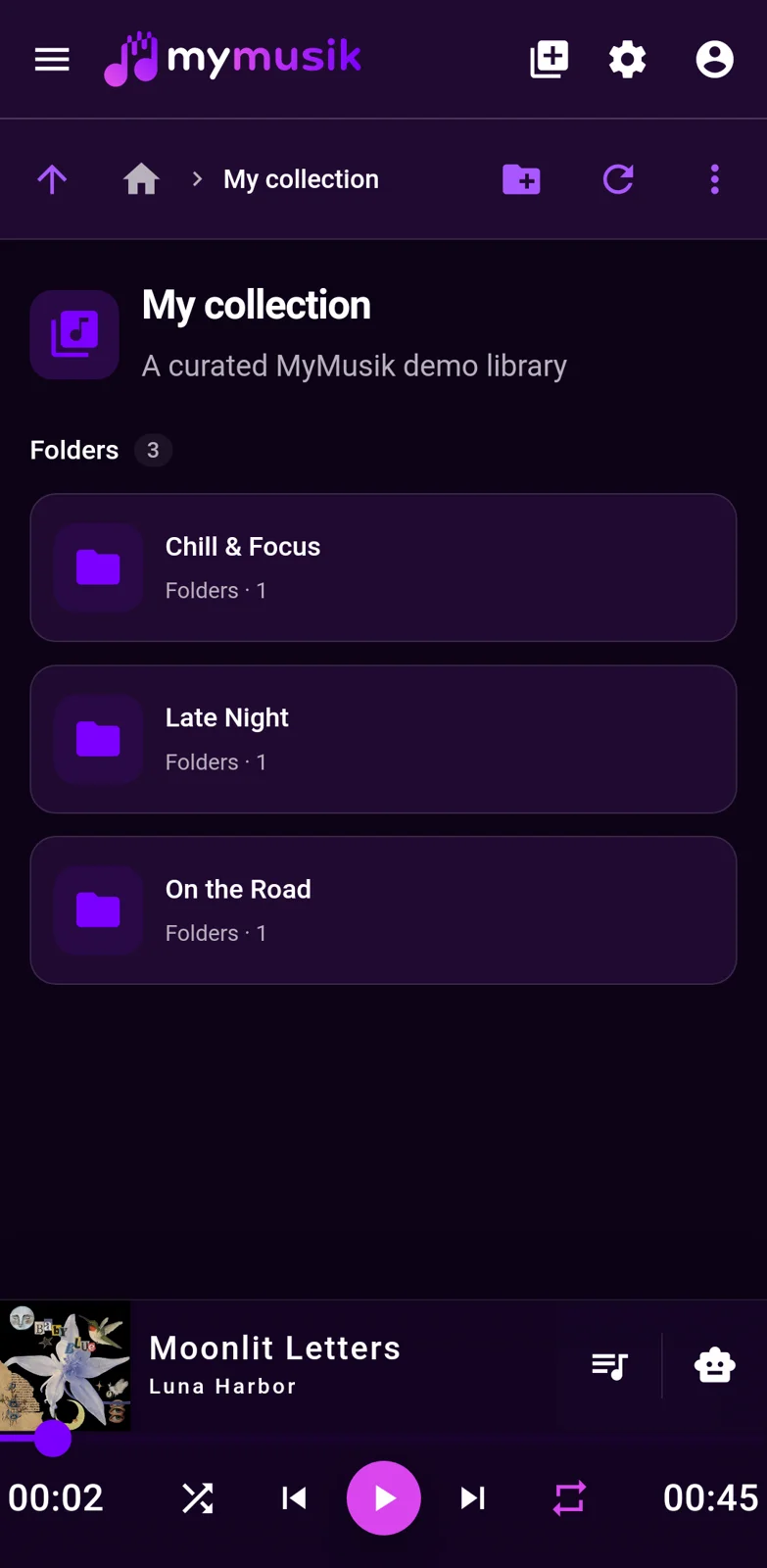
A still image of MyMusik’s library folders on an Android phone.
Group songs, albums and playlists by project, genre or purpose. Add subfolders when they help you browse. These folders contain library references, so placing an album in one does not move its original files on disk.
Correct titles, artist assignments and album information in the library. Add or change cover artwork; downloading images needs internet. Library details and metadata embedded in original audio files are separate. Check the original file in another player before relying on it containing the same changes.
Use a personal tag such as Practice to connect related music across albums or folders. Add tags manually, then find the tagged items through search and tag filters. Personal library tags are separate from an audio file's embedded artist, album and title fields.
Save tracks in a playlist and arrange their order for later listening. The playback queue controls what plays next. Changing the queue does not edit your saved playlist.
Keep a separate copy of important original audio. Use backup export in Local files for supported app data and inspect what the backup includes. Restoring replaces the selected app data after restart; cloud synchronization and a separate backup serve different purposes.
After organizing, open a song's details to work with its waveform. The secondary guide below explains cutting, extracting and exporting. The audio must be locally available; extract a new clip when you want to retain the source song.
Open Import and add two albums and a few recordings you own. This example calls the albums Harbour Lights and Sunday Sketches, with three rehearsal recordings; use your own music and names. Check conversion settings first, then wait for importing and any required acceptance to finish. Open the albums to confirm the tracks are in your library.
Open Folders and create My collection. Open that folder and create a subfolder named Rehearsals. You now have a place for the two albums and a separate place for practice recordings, without changing the original disk folders.
Use the available folder actions to add the two albums to My collection and the recordings to Rehearsals. On a desktop with drag support, you can also drag library items to a folder. Open each destination and check that the intended albums or recordings are there.
Open Harbour Lights and check its album name and artist. Correct a missing or inconsistent value, then check one song's title. These are library edits. Metadata embedded in original files is separate; do not assume another player will see the same changes.
Select the rehearsal recordings, open the tag editor for the selection and add Practice manually. Save the tag changes, then check a recording to confirm the tag was added. Other tags stay in place unless you remove them in the editor.
Select one song in Harbour Lights and use the playlist action to create Evening mix. Add one song from Sunday Sketches, then one rehearsal recording, to that playlist using their playlist actions. Open the saved playlist and arrange its tracks. Use the playback queue to change what plays next without editing this saved selection.
Search for a track title you just imported. Clear the search text, then use the Practice tag filter to find the rehearsal recordings. Open a result and check that it is the item you expected. Finding an item confirms its place in the library; check local audio availability separately before listening offline.
Step-by-step setup
Work directly with the waveform in a song’s detail view. Remove a section, create a separate clip, or export the resulting audio.
Before you start: Import a track and make its audio available locally. Open the song’s details and wait until its waveform has loaded.
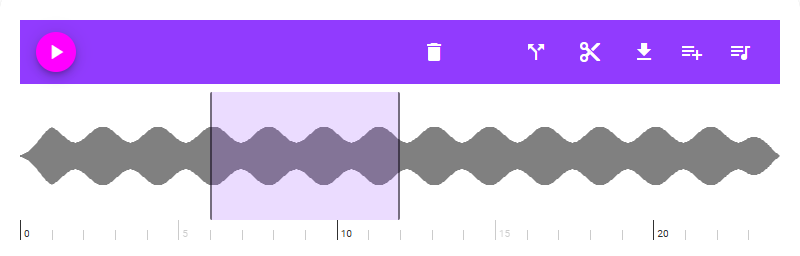
Drag across the waveform to mark the section you want to edit. Adjust the region handles to refine its start and end. Cut and extract controls appear when a region is selected.
Use the scissors control, Cut section, to remove the selected range from the current song. Use Extract section to create a new song from that range. Choose extraction when you want a separate clip and want to keep the source song as it is.
Watch the progress indicator and wait for completion before starting another edit. After a cut, the song waveform reloads. An extracted clip is added as a new song in the same album.
Play the result to check the edit. For cuts, use Undo when available; Redo becomes available after undoing. You can also use Undo in the completion message.
Open the download/export control and choose MP3, FLAC or OGG. Wait for conversion, then save the file using the download or native save flow. Export uses the current song audio; to export only a range, extract it first and export the new clip.
You have either an edited song or a new extracted clip, with an optional exported audio file in your chosen format.
If cut and extract are missing, select a region first. If export is unavailable, wait for the waveform to finish loading and make sure the audio is local and no download or edit is still running. If an edit fails, keep the source available and retry after the current operation finishes.
No. They organize references inside your MyMusik library. Use a file manager if you want to rearrange original folders on disk.
Editing a title, artist or album updates the library information. Do not assume it also rewrites metadata embedded in the original audio file. Supported export workflows are separate; check the resulting file when you need another player to read those details.
A saved playlist keeps a selection of tracks and their order for later use. A playback queue controls the current listening order. You can change upcoming playback without changing the saved playlist.
Select related entries to see the actions available for that selection. Shared tag editing can add or remove personal tags while preserving unrelated tags. Save the changes before checking the result; other editable fields depend on the selected item types.
Optional cloud synchronization includes supported library data and music transfers. It needs an account, internet access and available allowance. Check separately which audio files are stored on each device before going offline.
Keep important original audio on a separate backup. In Local files, export supported app data and inspect the backup contents before relying on it. Restoring replaces selected app data after restart. Do not assume an app-data export contains every original audio file.
Yes. Select a waveform region and extract it as a new song. Export that new song as MP3, FLAC or Ogg if you need a separate file.
Visit the download page, install MyMusik and try one music folder first.
Check the current plans for cloud storage and AI allowances before choosing a plan.